MAINE STATE LEGISLATURE
Law and Legislative Digital Library (LLDL)Search Tips
If you are looking for a particular word or LD number in a PDF on our website, you may find it easier using one of the search tools below instead of scrolling through and reading the text of each page.
Please note: Although OCR (optical character recognition) has been applied to make the text searchable, there may be omissions or errors in the recognition process.
-
Keyboard Shortcut Find
- Once you have opened the document in your PDF reader by clicking on the file or link, use the CTRL + F shortcut (Command + F on Mac), which opens the “Find” function in most applications, including browsers and Microsoft Office applications. To search for a word, type the word or phrase you are looking for in the form field.
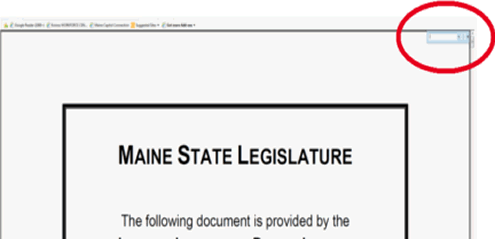
- When you press “Enter” or “Return”, the first instance of the word or phrase in the document will be highlighted, as below.
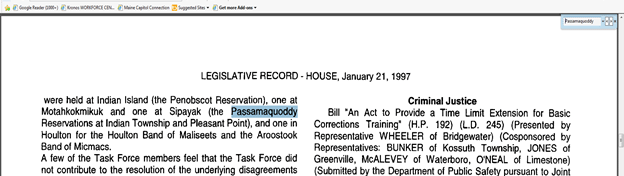
- If you click on the right arrow found next to the search box, the next instance of the word searched will be highlighted.
-
Mouse Shortcut Find
- Once you have opened the document in your PDF reader by clicking on the file or link, click your right mouse button and select “Find” which opens the find function in most applications. To search for a word, type the word or phrase you are looking for in the form field. When you press “Enter” or “Return”, the first instance of the word or phrase in the document will be highlighted. If you click on the right arrow found next to the search box, the next instance of the word searched will be highlighted.
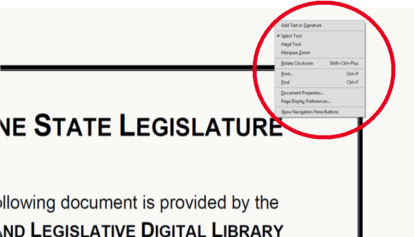
- When you press “Enter” or “Return”, the first instance of the word or phrase in the document will be highlighted, as below.
-
Search Tool in Acrobat
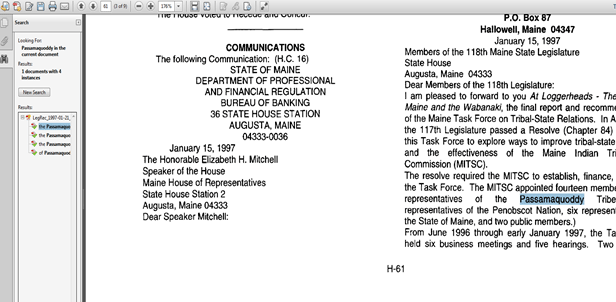
- In Adobe Acrobat, you can search the PDF using the search tool. Click on the binoculars icon on the toolbar, enter the word or phrase for which you are searching, and press “Search”.
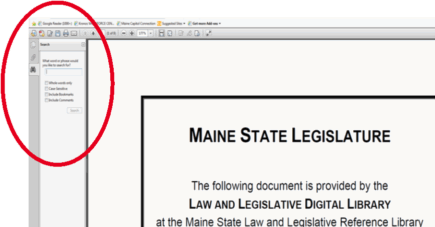
- This search tool will list the number of results found within the document. You can access any of the results by clicking on them in the list.